
Menu bar monitor · Apple Silicon
Every vital sign of your Apple Silicon Mac, in one menu bar item.
Click the item and you get CPU, memory, GPU, temperatures, fan speed, network, and your heaviest processes in one panel.
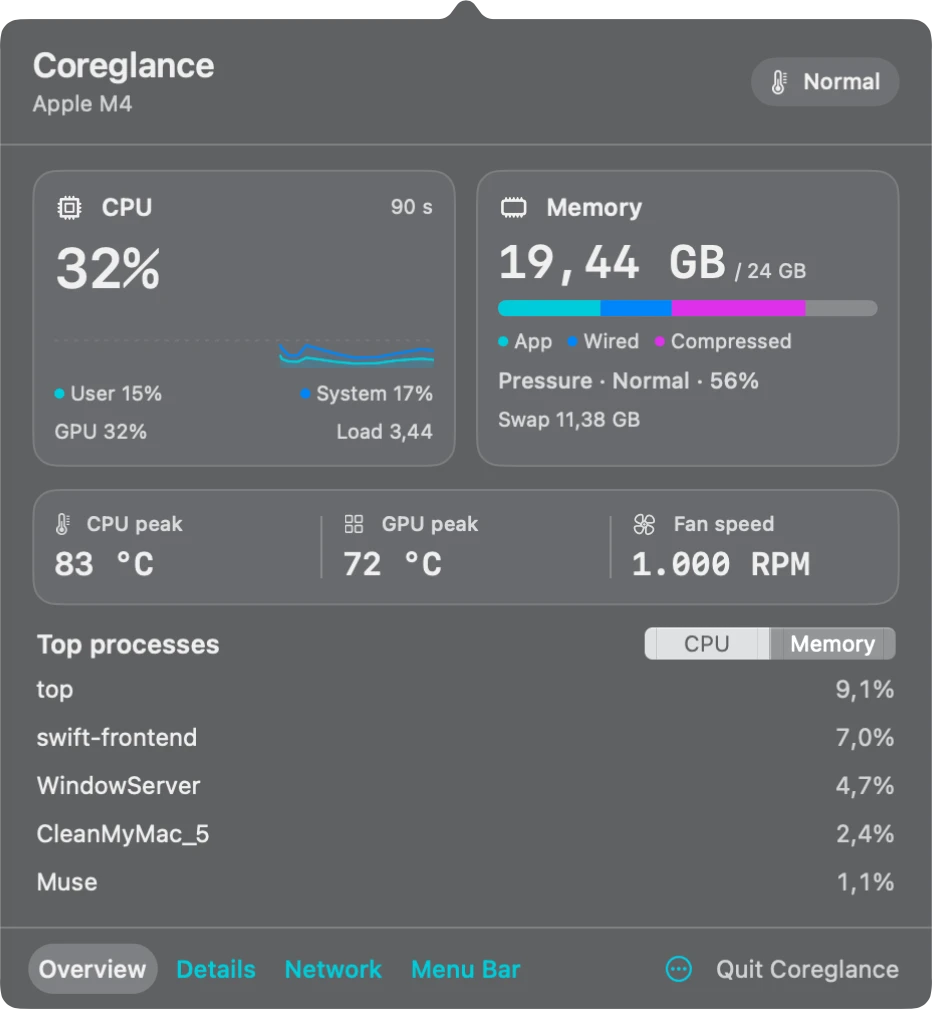
32%
CPU · From the panel
83°C
CPU peak · From the panel
1,000RPM
Fan speed · From the panel
The panel
Read the panel like an instrument.
Every crop is cut from the real capture, shown at 200 percent. Each caption names where it comes from. Nothing here is redrawn.
The 90-second graph, traced from the panel
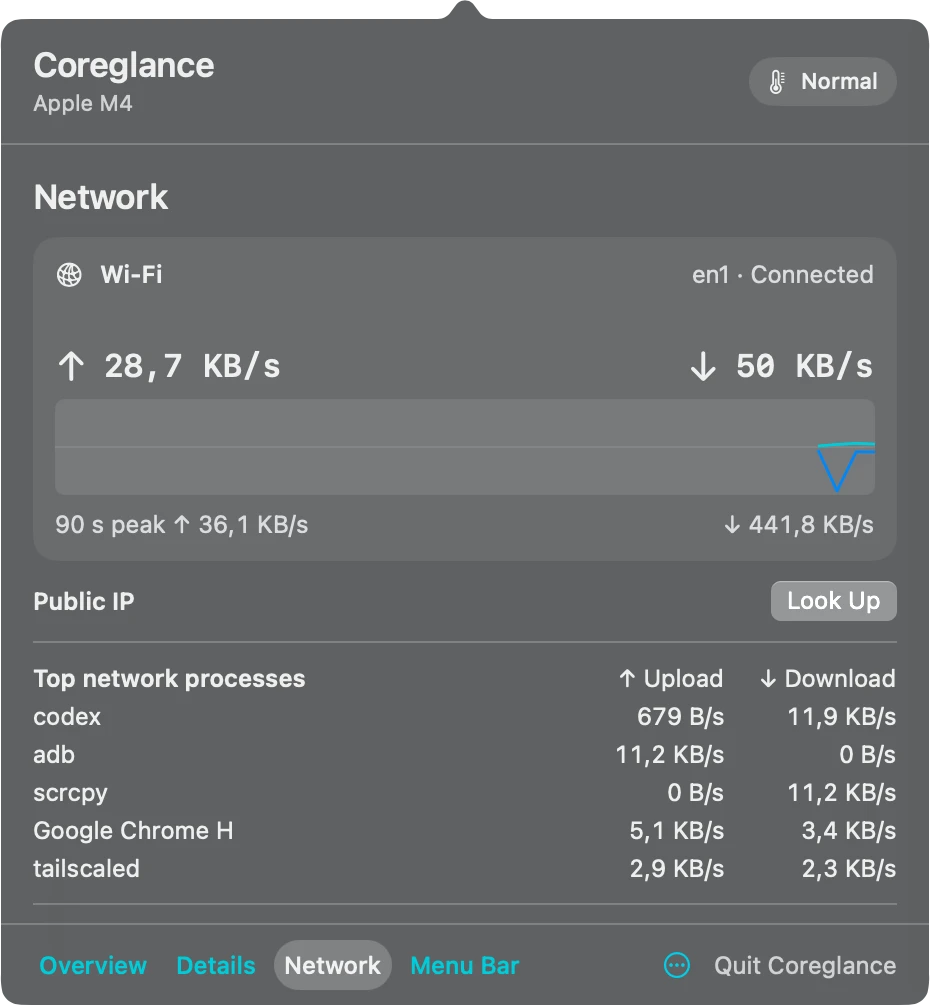
Live rates come with a 90 second graph. A Look Up button fetches the public IP through ipify only when you click it.
The menu bar item
The menu bar item is yours to size.
CPU load, memory pressure, fan RPM, a CPU graph, and network rates are all one toggle away in Settings.

Minimal
One metric.

Balanced
Up to three metrics.

Detailed
Every metric you select.
Powerhouse
It does not just watch. It cools.
75°C
Powerhouse boost threshold · Mac mini M4
The Powerhouse preset stores a fixed 75 °C boost threshold with release below 68 °C, and resumes after relaunch or wake. When CoreGlance quits, macOS takes fan control back.
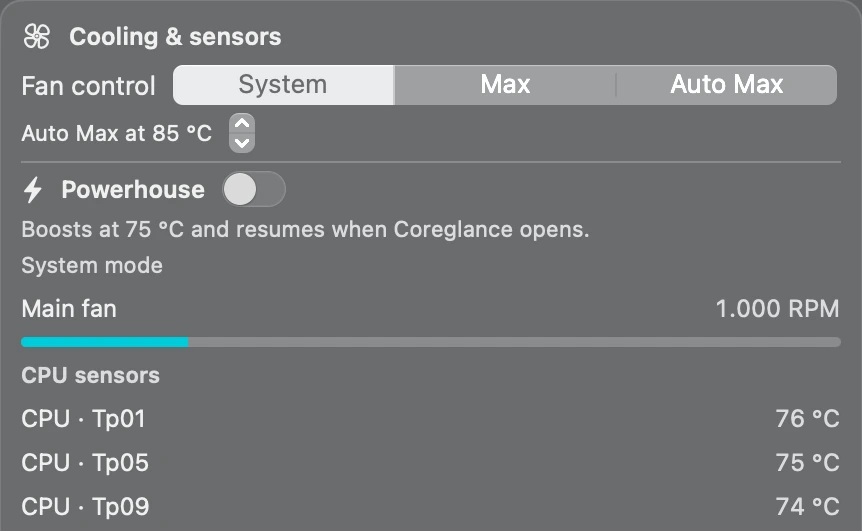
- System
- macOS controls the fans, as usual.
- Max
- Asks the hardware for its maximum fan target.
- Auto Max
- Boosts at a threshold you set between 65 and 95 °C, default 85 °C, and hands control back once the temperature falls more than 7 °C below it.
Auto Max threshold range, 65 to 95 °C
Fan control is Mac mini M4 only. It needs the authorised helper, approved once by an admin. Monitoring works on every Apple Silicon Mac, with no helper.
The numbers
It never invents a number.
When a reading fails, CoreGlance shows Unavailable. On a fanless Mac, it shows Fanless.
| App | Average CPU | Final footprint |
|---|---|---|
| CoreGlance | 0.266% | 35.0 MiB |
| iStat Menus 6.70 | 2.999% | 114.1 MiB |
| TG Pro 2.95 | 2.510% | 177.5 MiB |
Measured on a Mac mini M4, 45 seconds, all panels closed. CPU is a percentage of one core. CoreGlance used less CPU and a smaller footprint, with a higher RSS. Versions and configurations as installed on the test machine.
In daily use on a Mac mini M4. A 24-hour soak test, physical sleep cycles, and hardware beyond the M4 still need validation, stated plainly.

Get CoreGlance.
Every vital sign of your Apple Silicon Mac, in one menu bar item.
Apple Silicon · macOS 13 or later · Swift 6 toolchain to build from source
Get CoreGlance on GitHub